Quick start
FolioPress is a small, multilingual website builder with an editor that helps you write. This page gets you from nothing to a live site in six steps, then explains the handful of ideas the whole product is built on. Nothing here is hypothetical: every screenshot is the real admin.
Up and running in six steps
-
Create your site
Sign up, and FolioPress asks three things: what your site is called, which languages you write in, and your time zone. The first language you list is your primary language — everything you write starts there. You can add or remove languages later; nothing is locked in.
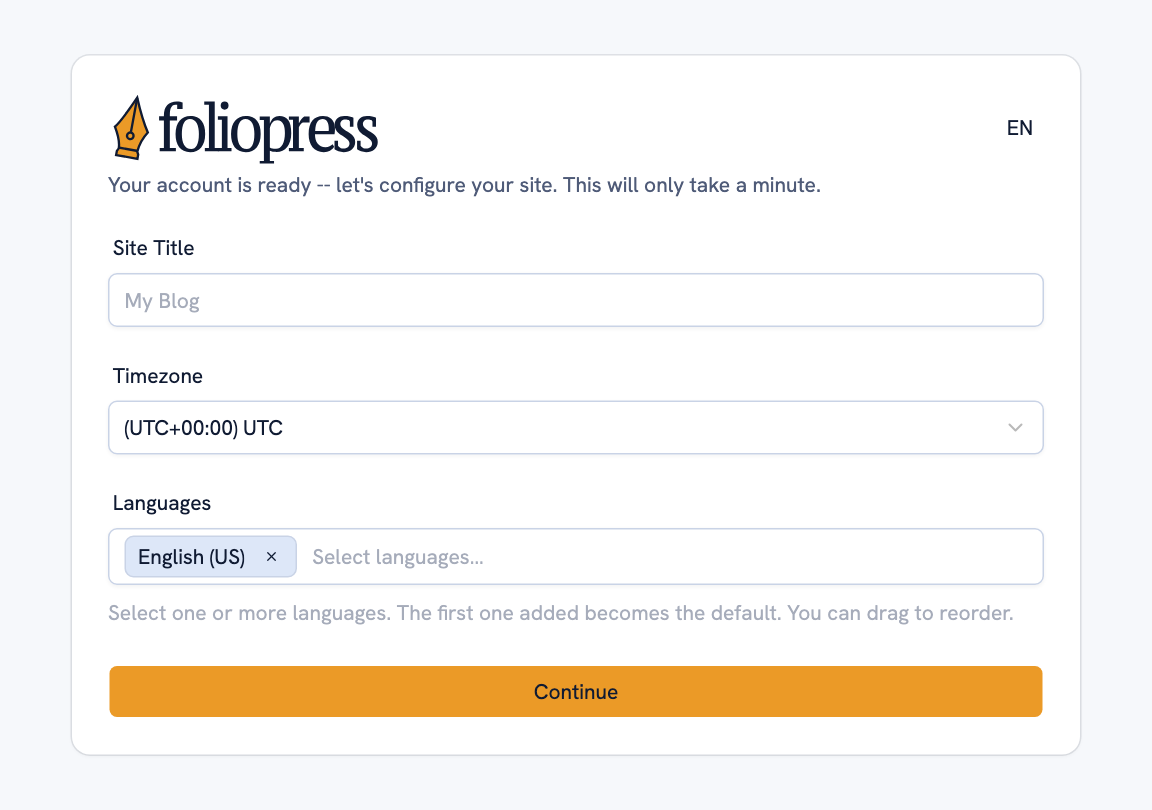
The setup screen. Your site is live the moment you finish it — with a starter home page and a theme already in place.
-
Write your first page
Open Pages and create a page. You get a title, a short description for search engines, and a content editor that works two ways: a rich-text view where bold looks bold, and a Markdown view if you prefer to see the source. Switch between them any time; it is the same content.
The tabs across the top of the form are your languages. Write in the first one — you translate the others whenever you like (see below).
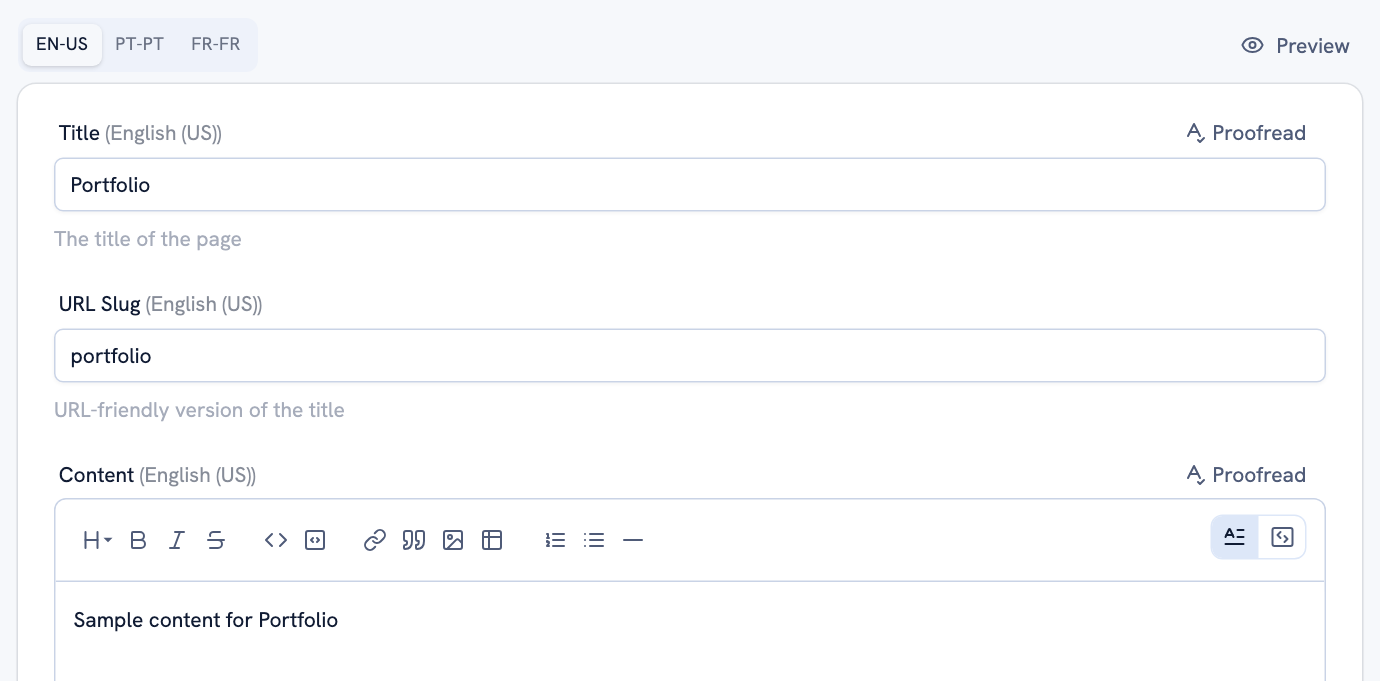
Each configured language has its own tab. The toolbar sits above the content; the same editor is used for posts.
-
Publish it — now, later, or not yet
Every page and post has one publishing control with three settings: Draft keeps it private, Now puts it live the moment you save, and On a Date publishes it automatically at a time you choose — you do not need to be at your desk when it goes out.

Scheduled content is invisible to visitors until the moment arrives.
-
Add a post, and tag it
A post is a dated entry — the thing readers come back for. It is created and edited exactly like a page; the difference is that posts appear in your feed, your RSS and your sitemap, newest first.
Tags are how posts find their place. Create your tags once under Tags, then pick them on any post — the field completes from the ones you have. Give a page the same tag and that page automatically lists those posts. This is how a “Blog” or “Notes” page fills itself.
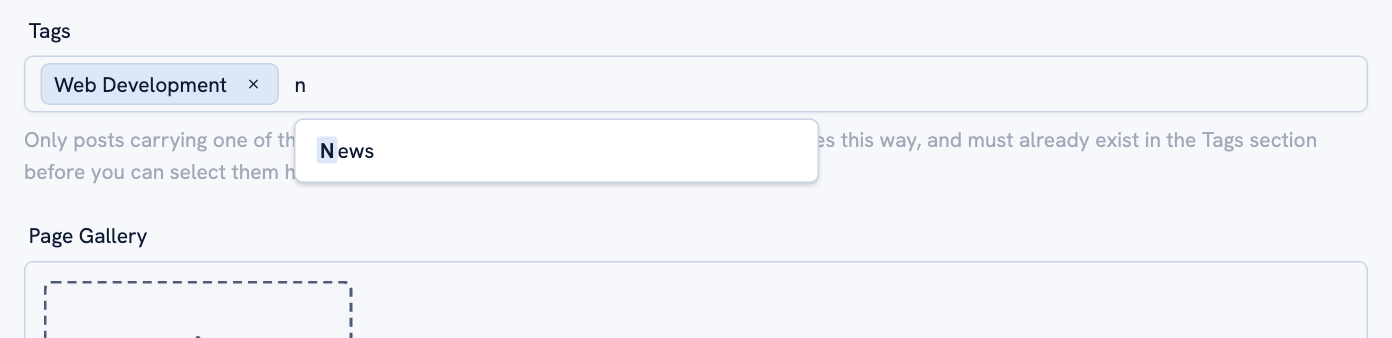
The field completes from the tags you have created under Tags; a tag can carry as many posts as you like.
-
Build your menu
Under Navigation, drag any published page into the order you want. That is your site’s menu — the theme draws it, in every language, with the right link for each.
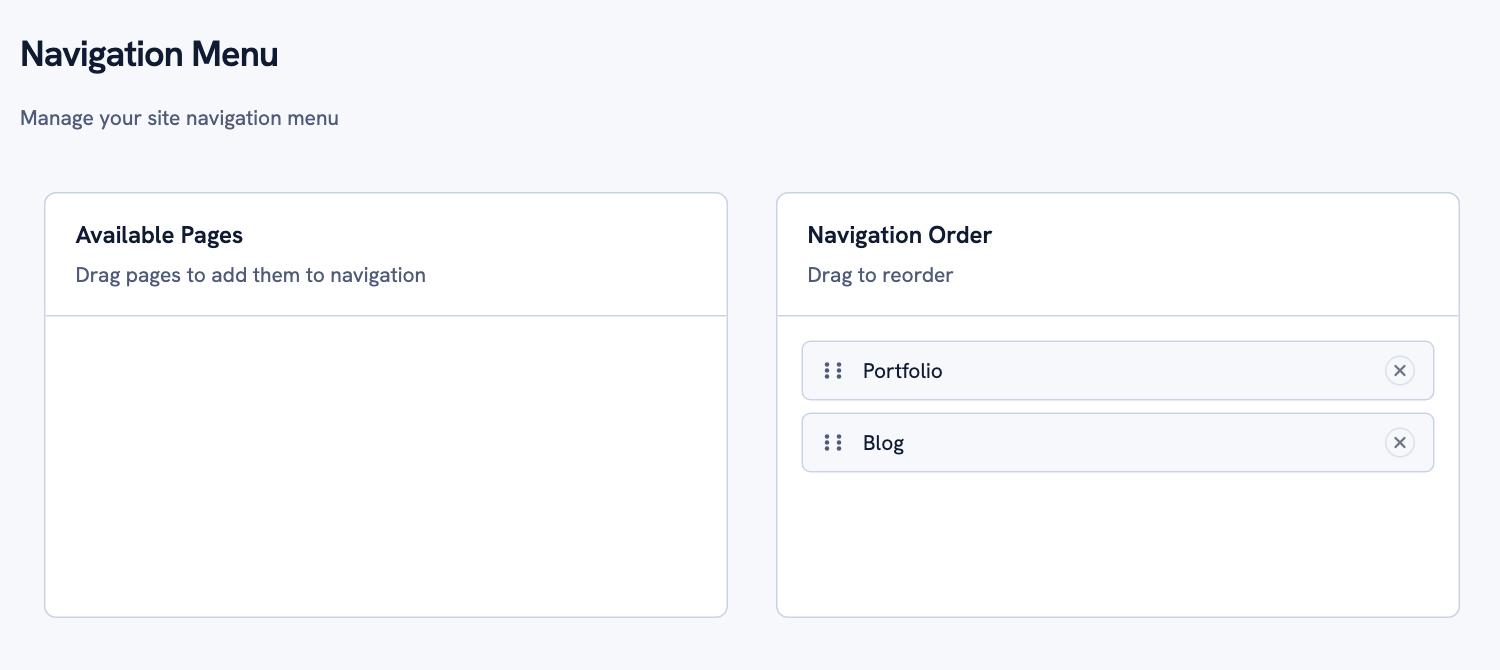
Anything not in the menu is still reachable by its own address — the menu is only what you choose to feature.
-
Choose a theme
Your content and its look are separate. Under Themes, pick any theme and your pages, posts and menu are redrawn in it — nothing about the content changes. Every theme adapts to phones, supports dark mode, and comes with the language switcher built in.
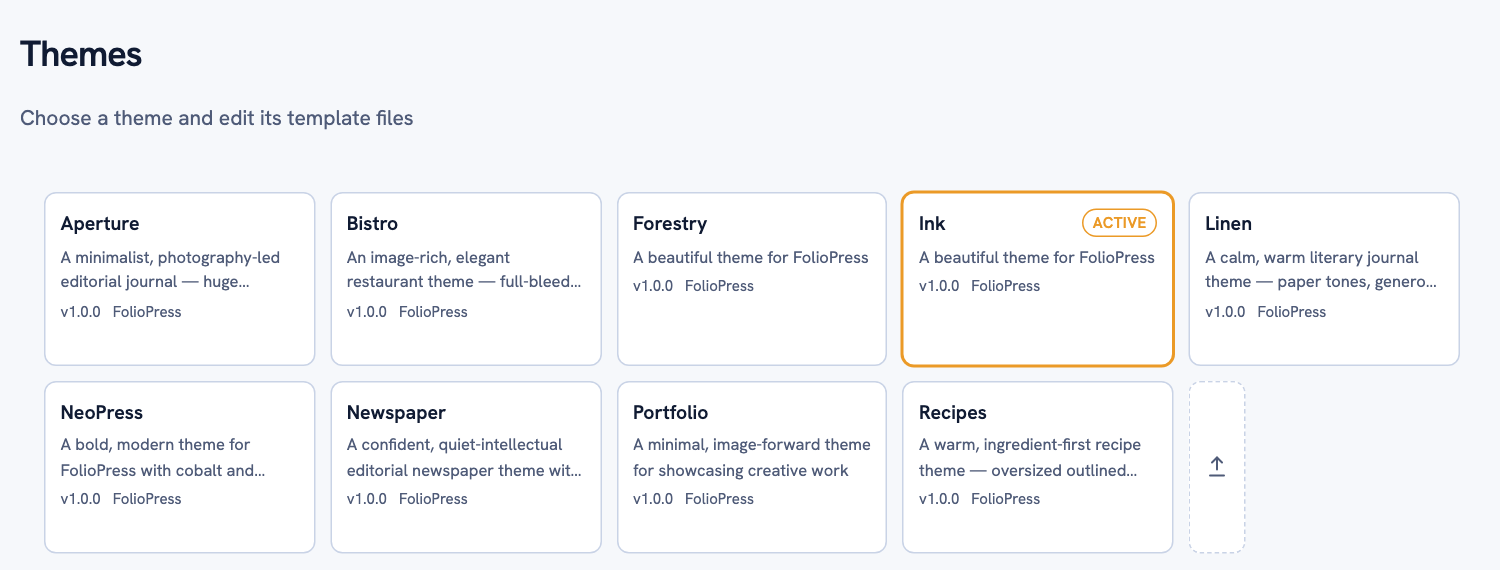
Try a few. Switching back is one click. See them all with live demos.
Translate when you are ready
Open any page or post and click a second language’s tab. It is empty until you fill it, and that is fine — a page that has no Portuguese version yet simply does not appear in Portuguese. Visitors get your primary language instead of a broken link.
When you are ready, write the translation yourself or press Translate: the AI drafts the whole page from your primary-language version — title, description and content — right there in the tab. It is a draft, in the literal sense: nothing is published until you have read it and saved it.
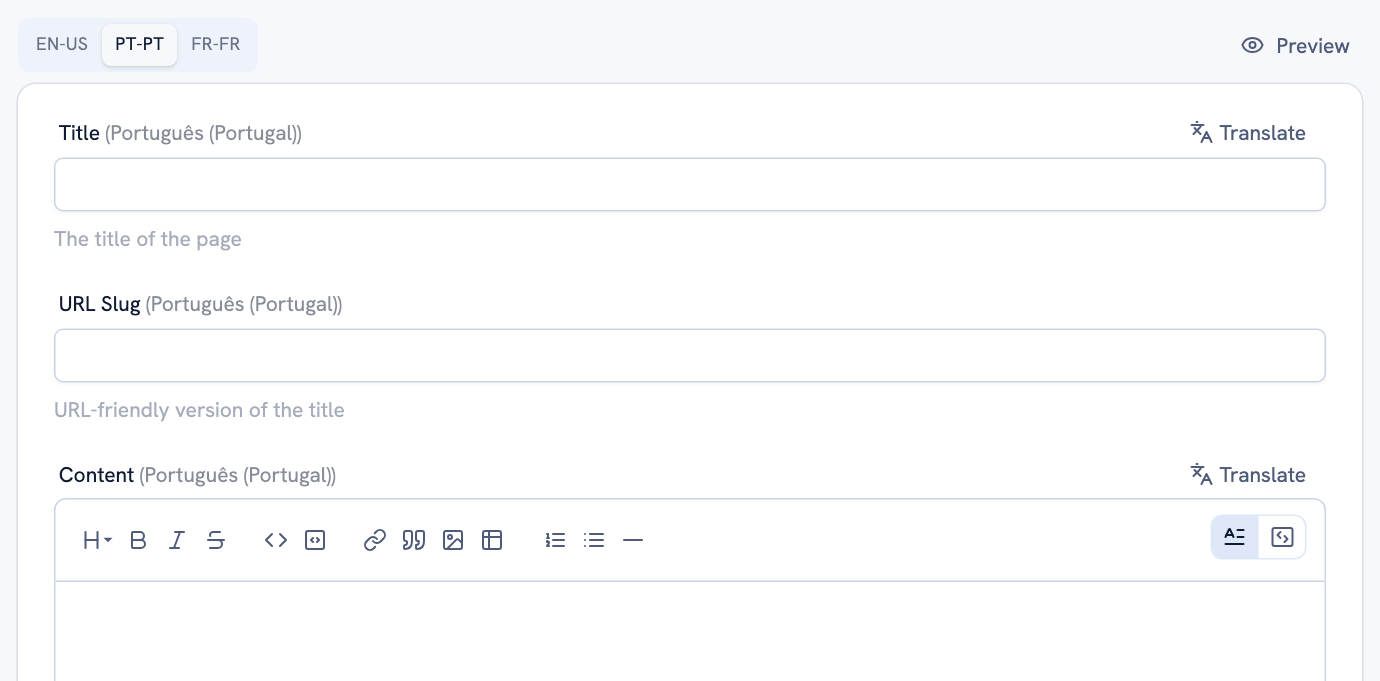
Translate works one field or one whole page at a time. Summarize and Proofread sit next to it, for your own language too.
The rule that never bends. Everything the assistant produces is a suggestion. It never publishes, never overwrites a version you wrote, and every use is counted on your dashboard so you always know how much of your monthly allowance is left.
The ideas behind it
Six steps is genuinely all it takes. What follows is the short version of how FolioPress thinks, so that everything else you meet in the admin makes sense.
One primary language
Every piece of content is written in your primary language first and translated from it, never the other way around. It is also what visitors see when their browser matches none of your languages, or when a translation does not exist yet.
Pages and posts are one thing
Same editor, same fields, same tags. A post is a page with a date, which is why it shows up in your feed, RSS and sitemap. Learn one and you know the other.
Tags connect content
A tag is a topic. Posts carry them; a page carrying the same tag lists those posts. Each tag also has its own public page, so readers can browse by subject. Tags translate too, and a private tag is for your own organising only.
Translated addresses
Your About page is /about in English, /pt-pt/sobre in Portuguese and /de-de/ueber-uns in German. Each translation has its own slug, and the language switcher always takes a visitor to the same page in the other language.
Publish on your schedule
Draft, now, or on a date. Scheduled content stays completely hidden until its moment, then appears on its own — feed, sitemap and all.
An AI co-writer, not a ghostwriter
Translate, Summarize and Proofread sit next to every field. They draft; you decide. Nothing goes live without you saving it.
Themes are a separate layer
Swap the theme and the same content is redrawn. If you can edit HTML and CSS, you can also open a theme’s files right in the admin and shape it — see Creating themes.
Your own domain, per language
Your site starts on a foliopress.io address. Add your own domain in Site Settings — one for the whole site, or one per language — point its DNS at us, and once verified it serves from there.
Any page can be your contact form
Pick a page under Contact form page in Site Settings and the theme renders a form on it. Submissions are emailed to you. No plugin, no third-party service.
The dashboard keeps score
Storage used, AI actions used this month, what has been published lately. Allowances depend on your plan, and you are told before you reach one.
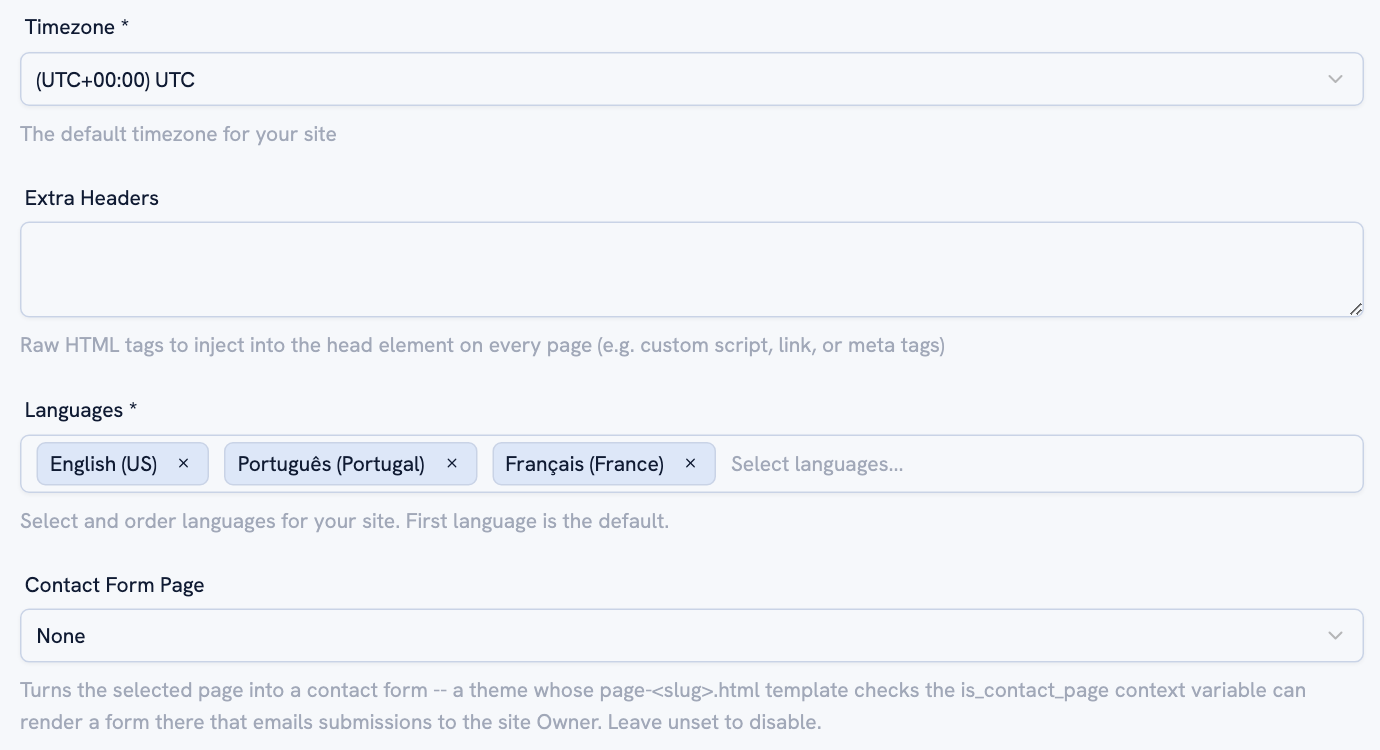
Site Settings is where your languages and the contact page live; each language’s own domain sits in its tab, further up the same page. Everything here can be changed later.